Element Glow Manual
1.0

Element Glow is a native-compute glow for After Effects built around a visual range selector. Instead of glowing everything above a simple brightness threshold, you choose exactly which tones, colors, channels, or alpha values should generate the glow, then blur and composite that selection with clean high-radius performance.

Use it for highlight blooms, neon edges, rim light, text glow, color-specific glows, alpha-driven halos, and adjustment-layer glow passes where you want the glow to react to the image underneath.
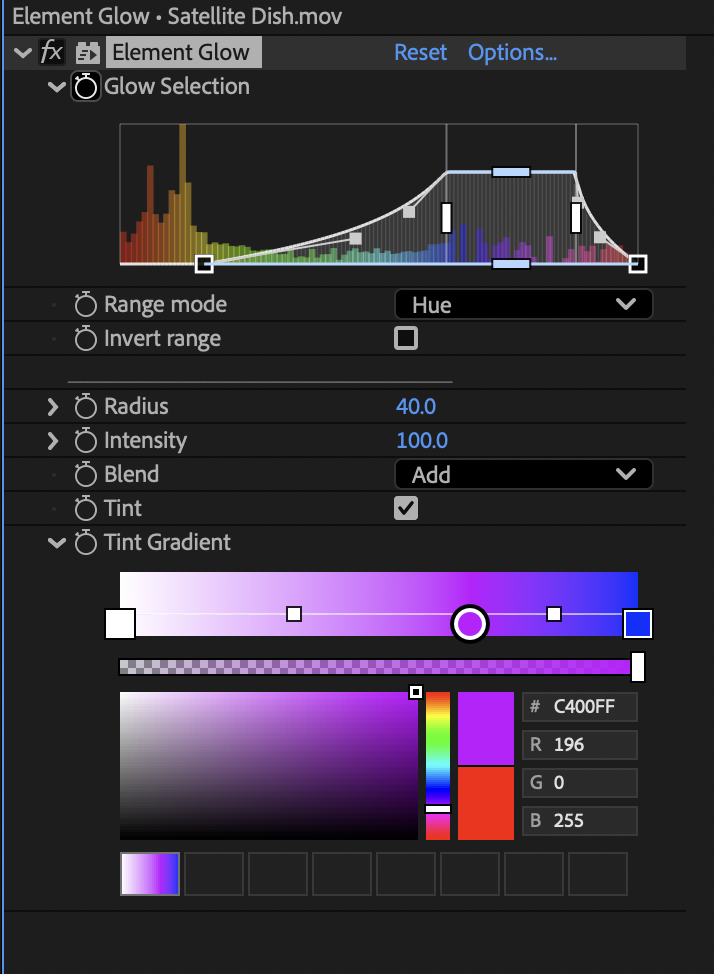
Interface
Glow Selection
The range selector decides which pixels create the glow. The histogram shows the distribution of the current input, and the handles define the selected range:
• The solid inner handles set the hard selected range.
• The outer soft handles feather into and out of that range.
• The filled band shows the final mask strength.
By default, Element Glow starts in a highlight range so bright areas glow immediately. Narrow the range for more selective glows, or widen it when you want broader image-wide bloom.

Range Mode
Chooses what the range selector measures:
Luminance — perceived brightness. Best default for highlight bloom.
Lightness — average RGB value. Similar to luminance, but more even across color channels.
Hue — selects by color family.
Saturation — selects vivid or muted areas.
Red / Green / Blue — selects by individual channel strength.
Alpha — selects by transparency, useful for text, shapes, mattes, and cutout layers.
For example, use Hue to glow only blue signage, Saturation to glow the most colorful parts of an image, or Luminance for classic style glows.
Invert Range
Flips the selection. If your current range is selecting the highlights, turning on Invert selects everything outside those highlights instead.
Radius
Controls the size of the glow. Higher values create a wider halo; lower values stay tight around the selected pixels.
Radius only controls glow size. It does not automatically make the glow brighter, so you can shape the spread and brightness separately.
Intensity
Controls glow brightness. 0 disables the glow and returns the original image. 100 is the default. Values above 100 push the glow hotter for stronger bloom and stylized overdrive.
If the glow feels too large but not bright enough, lower Radius and raise Intensity. If it feels too harsh, lower Intensity or soften the range selection.
Blend
Chooses how the glow composites with the source image:
Add — bright, energetic bloom. Best for lights, highlights, neon, and effects work.
Screen — softer brightening that preserves more of the underlying image.
Normal — places the glow over the source with opacity-style control.
Under — places the glow under the selected source detail, keeping the original selected pixels crisp on top.
Use Add for classic glow, Screen for a gentler photographic bloom, Normal for controlled graphic looks, and Under when you want a glowing halo behind text or shapes without washing out the foreground.

Tint
Enables a gradient tint for the glow. When Tint is on, the Tint Gradient controls the color of the glow before it is blurred, so the halo carries the selected color cleanly into transparent areas.
The start of the gradient affects the strongest selected core, and the end of the gradient affects the softer falloff. Use a white-to-color gradient for a clean bright center with a colored outer halo, or use two saturated colors for a more stylized effect.
Installing Element Glow
Element Glow must be placed in the Plug-ins directory in the After Effects folder. That folder will be named "Adobe After Effects Effects [version]" which has been replaced with "AE" below.
macOS
For macOS, you'll use the .plugin file.
/Applications/AE/Plug-ins
Windows
For Windows, you'll use the .aex file.
\Program Files\AE\Support Files\Plug-ins
If After Effects was running when you installed the plugin, you’ll need to restart it.
Launching Element Glow
When properly installed, you will find Element Glow under the Effects > Element Supply Co. menu in After Effects.
Thank You!
Thank you so much for purchasing Element Glow! We appreciate you supporting us and we sincerely hope that it will help save you time in your work! Feel free to contact us to tell us about the awesome stuff you’ve used Element Glow on. Or contact us if you need help so we can do our best to help you!
Thanks again!