Shimmer Manual
v1.0.0
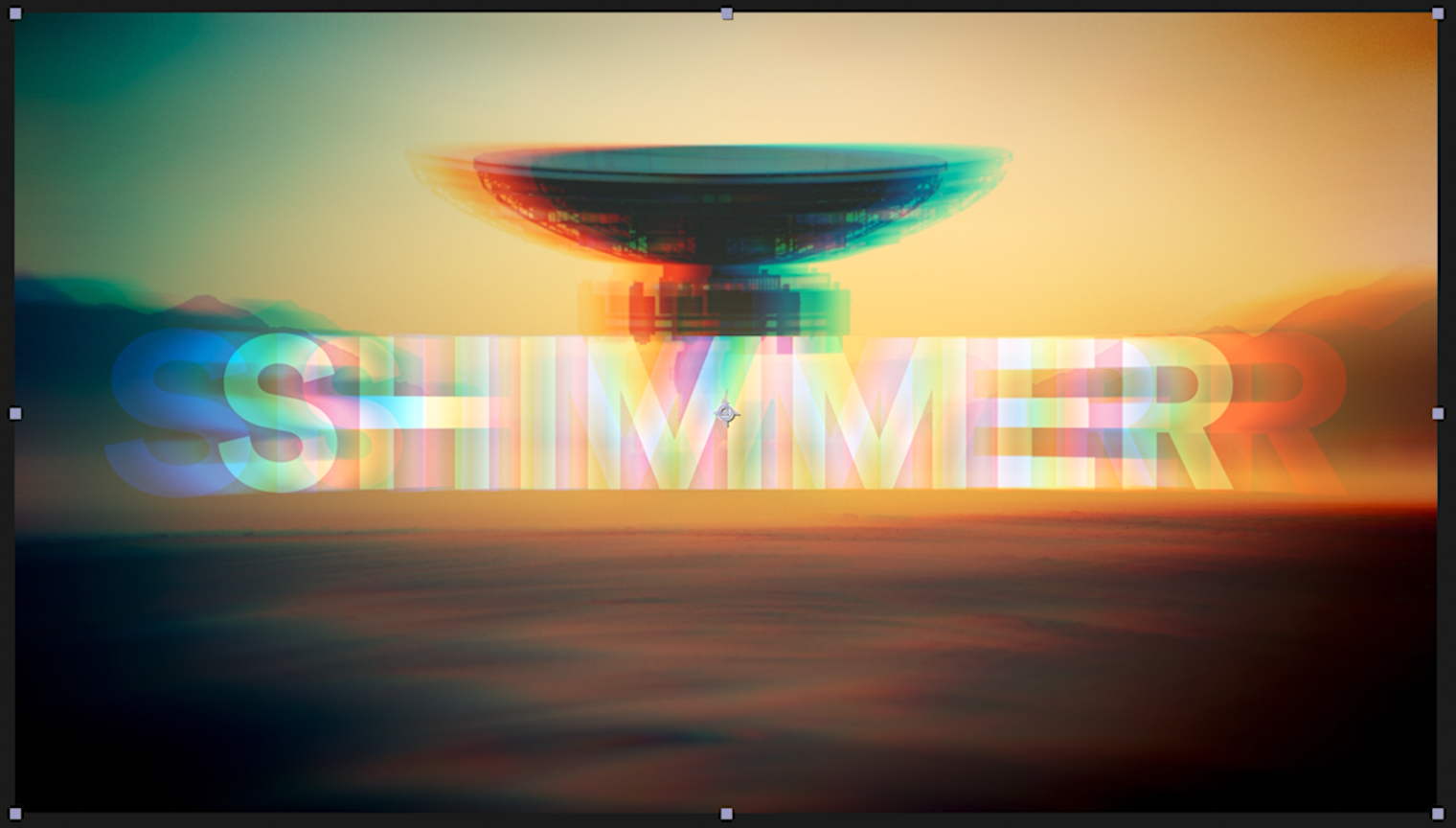
Shimmer is a spectral dispersion effect for After Effects. Instead of splitting the image into a fixed red/green/blue offset, it splits it along a gradient you control — every color stop becomes its own displaced copy of the image. That makes it a chromatic aberration plugin, a prism, a lens-warp rig, an anaglyph tool, and a temporal color-ghosting effect, all from the same set of controls.
Shimmer works on a difference, not a mix: it outputs the dispersion itself, added back over the untouched source. Flat areas cancel exactly, so only edges fringe — the way a real lens behaves — no matter how wide you push it.
Installing Shimmer
Shimmer must be placed in the Plug-ins directory in the After Effects folder. That folder will be named "Adobe After Effects Effects [version]" which has been replaced with "AE" below.
macOS
For macOS, you'll use the .plugin file.
/Applications/AE/Plug-ins
Windows
For Windows, you'll use the .aex file.
\Program Files\AE\Support Files\Plug-ins
If After Effects was running when you installed the plugin, you’ll need to restart it.
Launching Shimmer
When properly installed, you will find Shimmer under the Effects > Element Supply Co. menu in After Effects.
Fringe Selection
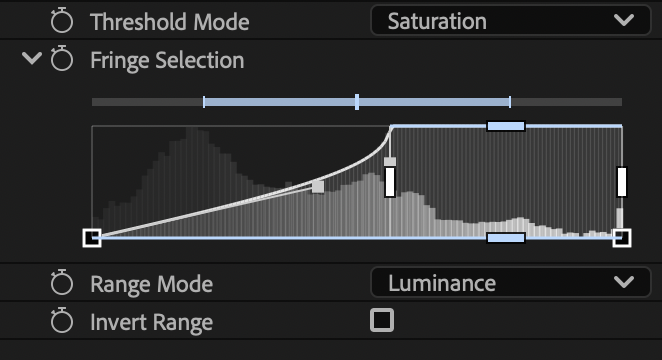
The range selector decides which pixels are allowed to fringe. The histogram shows the distribution of the current layer, and the handles define the selected range:
The solid inner handles set the hard selected range.
The outer soft handles feather into and out of that range.
The bar above the histogram is the threshold profile — a contrast curve on the selection.
Unselected content contributes nothing to the dispersion, but the fringe from selected content is free to spill past the selection edge rather than being clipped.
The Effect
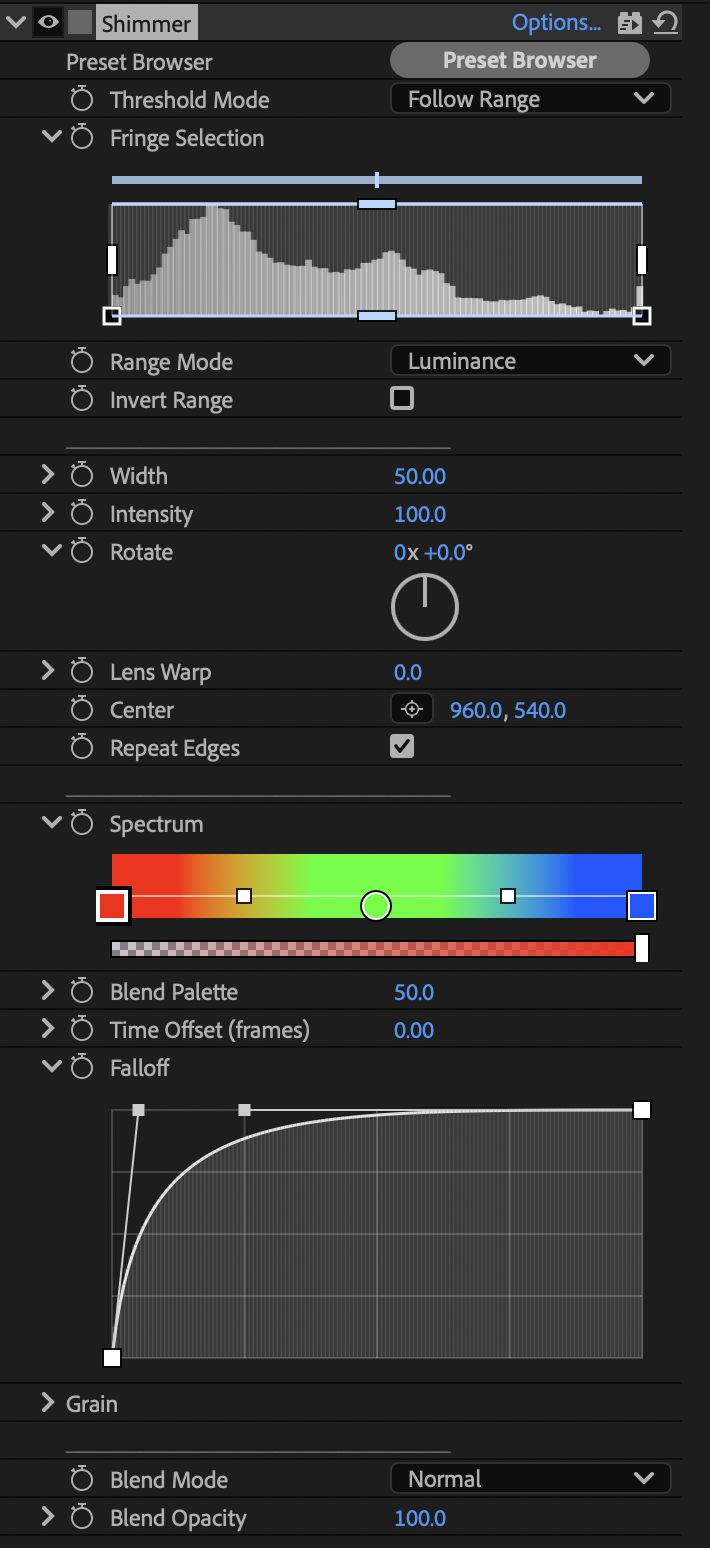
Width — total separation across the spectrum, in full-res pixels. The primary size control, and the same value at Full, Half and Quarter preview.
Intensity — strength. 0 is off, 100 is unity; past 100 it saturates the fringe rather than brightening it.
Rotate — aims the split.
Lens Warp — bends the flat split through a lens. 0 is an even split with no center. Positive is pincushion, stretching toward the corners. Negative is barrel/fisheye: the split shrinks outward, crosses zero, and flips order past the null ring.
Center — origin of the lens field. Only matters when Lens Warp is non-zero.
Repeat Edges — holds the border pixel so a wide fringe doesn't sample past the canvas. On by default.
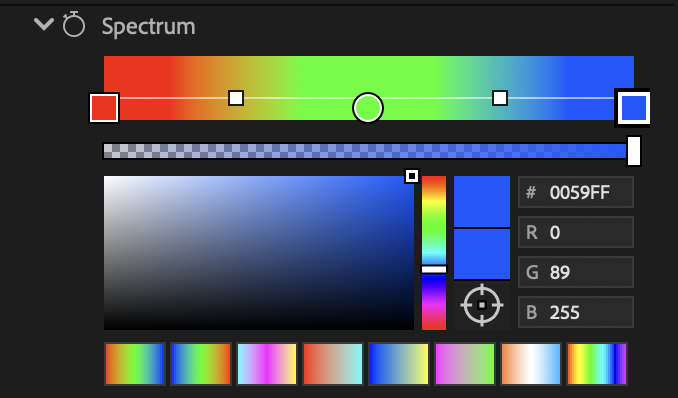
Spectrum — the gradient that defines the dispersion. Each stop becomes its own displaced copy in its own color. Red-to-blue is classic aberration; more stops, more copies; the opacity ramp fades copies along the spread.
Blend Palette — 0 gives hard, distinct copies; 100 gives a continuous spectral smear.
Time Offset (frames) — pulls each copy from a different frame, so the spectrum orders the copies in time as well as space. Negative trails, positive reaches forward, up to 16 frames. With Width at 0 this is pure temporal shimmer: color ghosting in place, no displacement. At 0 it costs nothing.
Falloff
The opacity envelope along the spread — left of the curve is the outer edges of the fringe, right is its center. A fast rise keeps the center strong and fades the outer copies; flat keeps every copy equal.
Grain
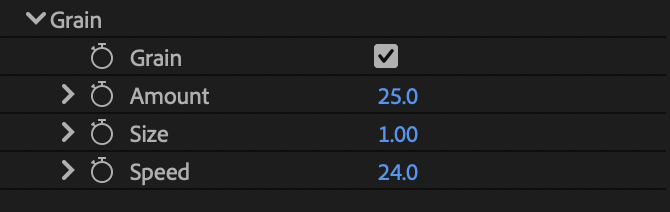
Dithers the fringe with film noise — the source image is untouched. Off by default. Amount is strength, Size is scale in pixels, Speed is how fast it reseeds in frames per second (0 freezes it).
Tips
Classic chromatic aberration: red-to-blue Spectrum, Blend Palette around 50, slight negative Lens Warp, low Width.
Prism refraction: stops across the full hue wheel, high Blend Palette, high Width.
Anaglyph: two hard stops — red and cyan — Blend Palette 0, Lens Warp 0.
Text and logos: Range Mode Alpha so the fringe keys off the glyph edges.
Temporal shimmer: Width 0, animate Time Offset, add Grain.
Thank You!
Thank you so much for purchasing Shimmer! We appreciate you supporting us and we sincerely hope that it will help save you time in your work! Feel free to contact us to tell us about the awesome stuff you’ve used Shimmer on. Or contact us if you need help so we can do our best to help you!
Thanks again!